Lines
Line Types
Polyline
Each segment of a polyline can be straight, an arc, or a bezier curve. 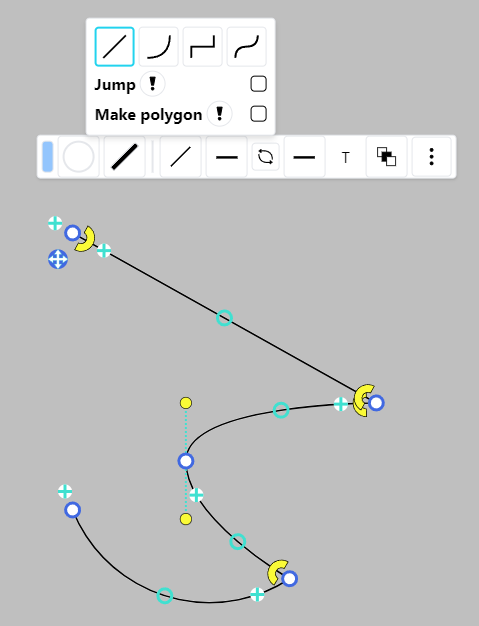
Arc
Create and modify an arc curve by dragging the anchor at the center of the segment. 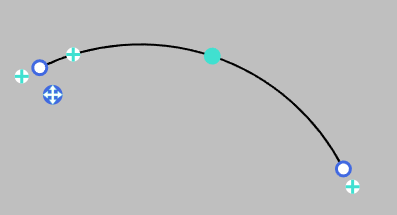
Bezier Curve
Create and modify a cubic bezier curve by dragging the anchors around the vertices. These anchors are hidden when the segment is an arc. 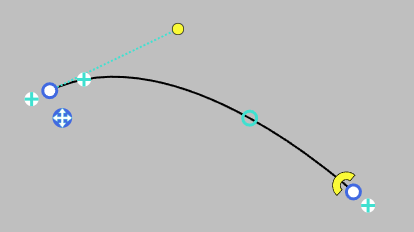
Smooth Curve
The entire line automatically becomes a smooth bezier polyline. 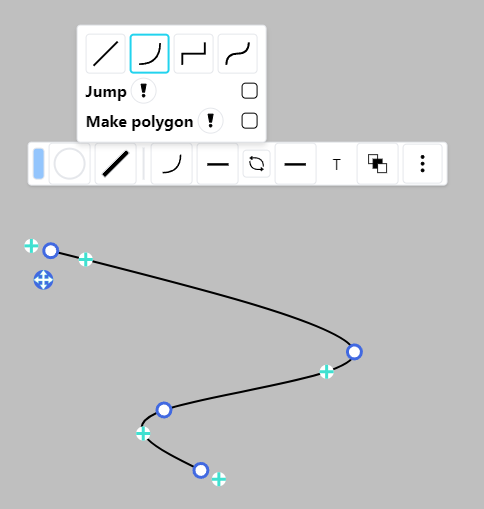
When the first and last vertices are at the same location, the line forms a loop. 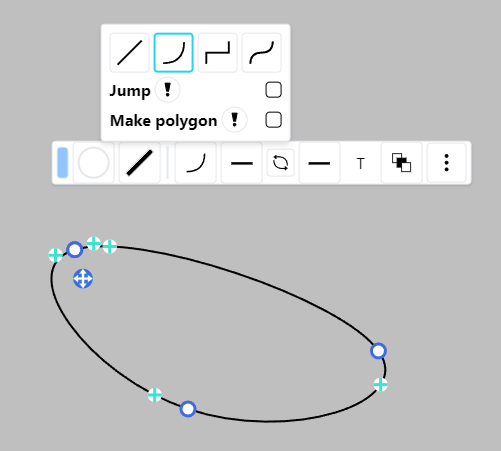
Elbow / Curved Elbow
Elbow lines are automatically optimized along with connected shapes. The optimization may be unstable until the line is connected to shapes. 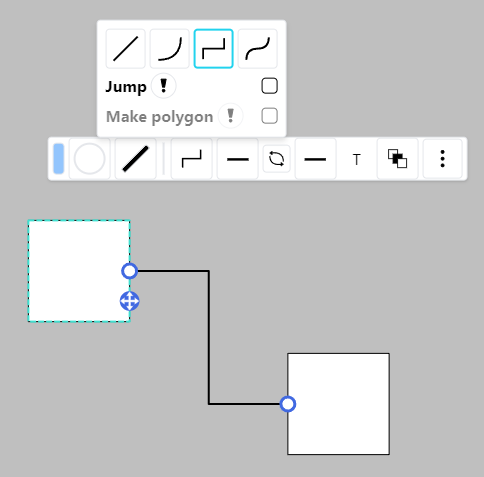
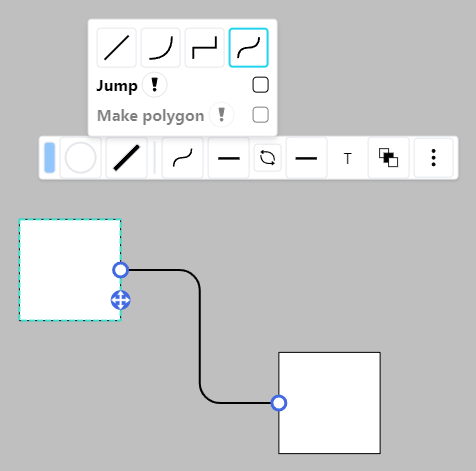
Internal segments can be moved in a certain direction by dragging. 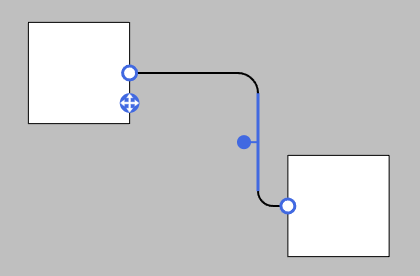
Tangent / Normal Line
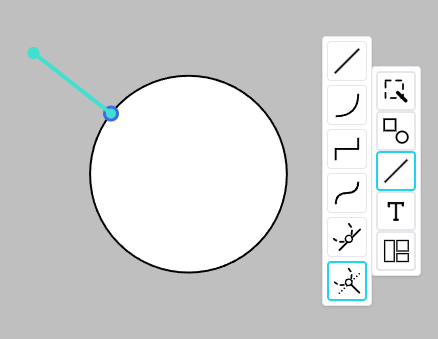
You can place a tangent or normal line at the outline of a shape or a line.
Click the respective button in the toolbar, then choose the target line on the canvas. 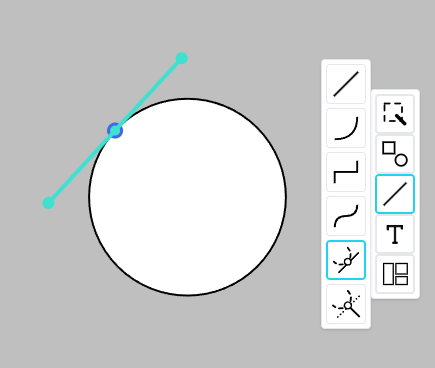
Modify Vertices
You can add or delete vertices unless the line is an elbow.
Add
Drag the anchor near each vertex to add and move a new vertex to the line. 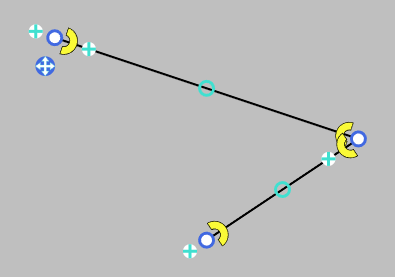
Delete
Delete a vertex via the context menu on the vertex. 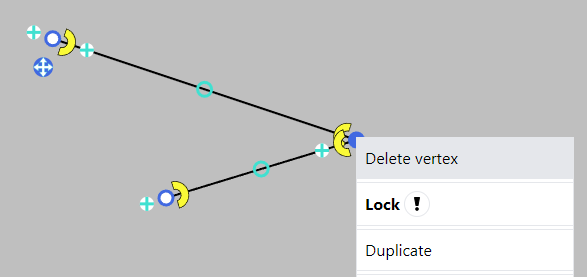
You can also delete a vertex by shift + clicking it.
Modify Segments
Move or extrude a segment by dragging it while the line is selected.
Switch the operation by pressing the e key while moving or extruding a segment. 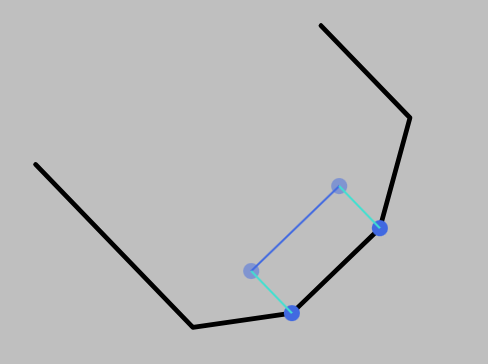
When a segment is extruded, new vertices are automatically inserted. 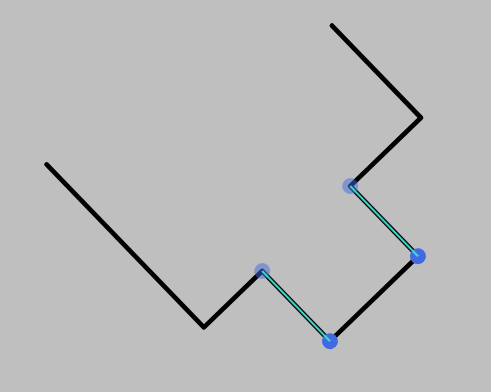
Jump
When this property is enabled, the line jumps over other backward lines. Jumping can only occur between straight segments. 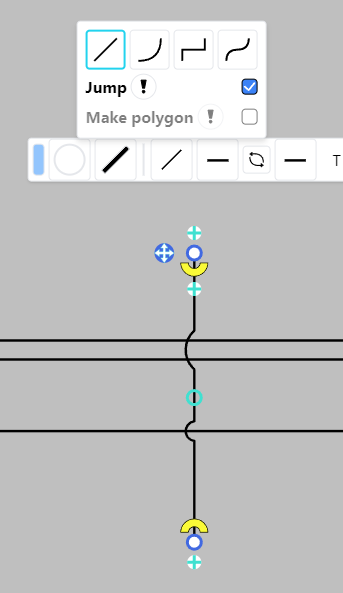
Make Polygon
Lines, except for elbows, can be converted into polyline or polygon shapes that use the source lines as outlines.
Source Line 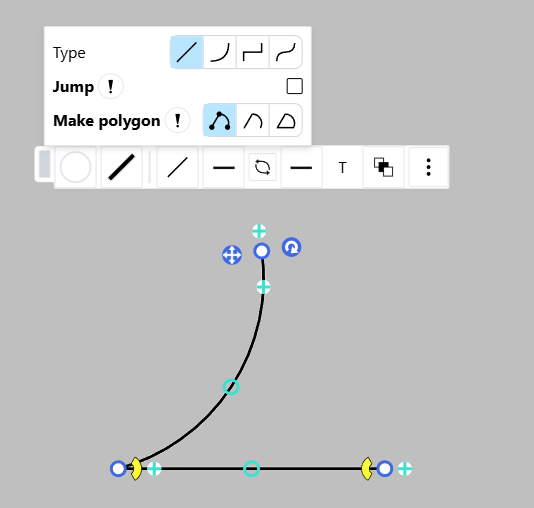
Polyline 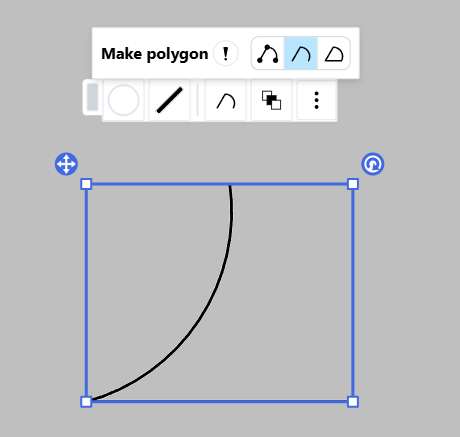
Polygon 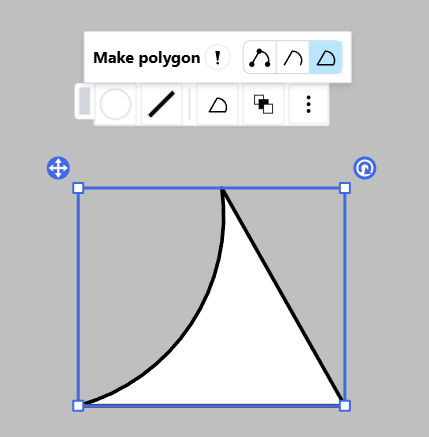
Both polyline and polygon can revert to the source line, but some properties, such as shape connections or line heads, may be lost in the process.